Posts

Block Command Prompt (CMD) Using Intune

Image
Please follow below steps to block CMD on user devices. 1. Go to Microsoft Endpoint Manager admin center.  Click All Groups > + New group 2. Enter the info for group creation. After that click Create 3. Go to Devices > Configuration profiles > +create profile 4. Choose the Platform , Profile type , Template name and click Create 5. Enter the Name > click Next 6. Click Add 7. Enter below info and click Save 8. Click Next 9. Click  Next 10. Click Add groups 11. Choose the Group that you want to push block CMD and click Select 12. Click Next 13 . Make sure rule configured as below depends on the platform choose, then click Next 14 . Click Create 15. Check the device status, wait for a while for it to take changes 16. On user device, try open CMD 17. User will see the CMD have been block
Push Apps to Android Devices via Intune

Image
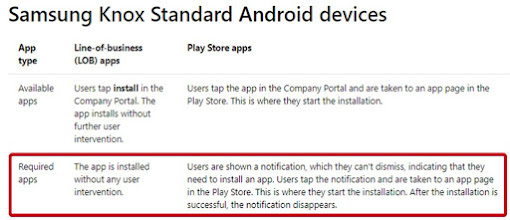
Push Apps to Android Devices via Intune Please follow below steps to Push Apps to Android Devices via Intune. *FYI,  we cannot install the app silently on Android. We can force the app to be install but user will get the prompt to install the app. If user click cancel and ignore, after that it will prompt again. *Check  the link below for further understanding https://docs.microsoft.com/en-us/mem/intune/fundamentals/end-user-apps-android Steps: 1. Go to “ portal.azure.com ” -> Login -> Go to “ Intune ”. 2. Go to "Client apps" 3. Click “ Apps ” > “ +Add ” 4.  Select “Android store app”   5.   Please go to google play store to get the Appstore URL. 6.   Go to “play.google.com” . Search for the app and copy the link of the app that you want to push and paste into the “Appstore URL”. 7. Choose the “Minimum operating system” 8. Click “ Select image ” to insert the Logo 9. Click on the blue folder symbol. 10. Select the logo to upload. 11. Click “ OK ”...

Warning "Windows can't find target" when open Outlook App

Image
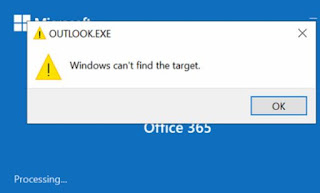
 Cannot open Outlook App, prompt "Windows can't find target" If you can't open Outlook App and received this error, please try below solution. Solution 1 Repair you Microsoft Office 365 Go to Control Panel > Programs > Programs and Features *Find your Microsoft 365 > Right Click > Quick Repair * If Outlook App still can't open, continue on Solution 2 Solution 2 Open Outlook in safe mode, try disable add in one by one to check if one of the add in that are causing the issue. *Make sure closed the Outlook App first. To open Outlook in safe mode, run below outlook.exe /safe Click OK Click File > Options > Add-ins > COM Add-ins > Go Untick 1 of the add-in > OK   *Then try open your Outlook App (not in the safe mode), if still can't open, repeat the same steps to untick another add ins and tick again the 1 that are not cause issue that you untick just now. *Repeat the steps until you find which of the add-in cause the issue

DMARC Checker

Image
 DMARC Checker You can use few tools to check if the DMARC already enable or not in your organization.  1. MX Toolbox https://mxtoolbox.com/DMARC.aspx *If don't have record, it will show no DMARC record found *If have record, you will have output like below 2. AGARI https://www.agari.com/insights/tools/dmarc/ 3. DNS Checker https://dnschecker.org/dmarc-record-validation.php 4. Dmarcian https://dmarcian.com/dmarc-inspector/